Using console variables
The plugin includes console variables (cvars) which can be used to tweak the behaviour of the plugin during development.
Console variables are not available in shipping builds. If any of these settings improve the behaviour of your game, please let support know so we can get to the root cause of the issue.
t.EOSTickRegulation
The tick regulator is on by default and ensures that the EOS SDK is always ticked at 60 frames per second, regardless of the current rendering framerate of the game. This is important to ensure that network packets are both sent and received at a reasonable rate.
You can turn off the tick regulator with:
t.EOSTickRegulation 0
t.EOSOnDemandPacketDispatch
This forces the plugin to dequeue all pending packets via EOS_P2P_ReceivePacket every time the engine code calls HasPendingData or RecvFrom on a socket, instead of dequeuing all packets once at the start of a frame. This makes the plugin match the same receive timing as Epic's EOS plugin. In practice we haven't seen this setting make any difference at the rate of received packets, most likely because the packet queue is only updated when EOS_Platform_Tick occurs anyway.
You can enable on-demand packet dispatch with:
t.EOSOnDemandPacketDispatch 1
t.EOSEnablePacketTiming
This makes the plugin emit a timestamped trace of all packets sent over EOS P2P connections to a CSV file under Saved/EOSPacketTiming.csv. These timestamps are only accurate on the same machine (i.e. play-in-editor with multiple players). It can't be used to diagnose latency across multiple computers because each computer's clock is likely to be slightly out-of-sync.
You can turn on packet timing with:
t.EOSEnablePacketTiming 1
With this option enabled, you can render a graph in Excel and see how long each packet spent in-flight (inside the EOS SDK) and in the receive queue (in the plugin). This timing measures from the moment the engine notifies the plugin a packet needs to be sent (via the SendTo call) to the moment the engine receives a packet from a socket (via the RecvFrom call). Any additional latency reported by the engine (e.g. via the Ping property on player state) is induced by the engine and not the plugin, though in practice we've seen the latency reported by this CSV file match the engine's reported latency.
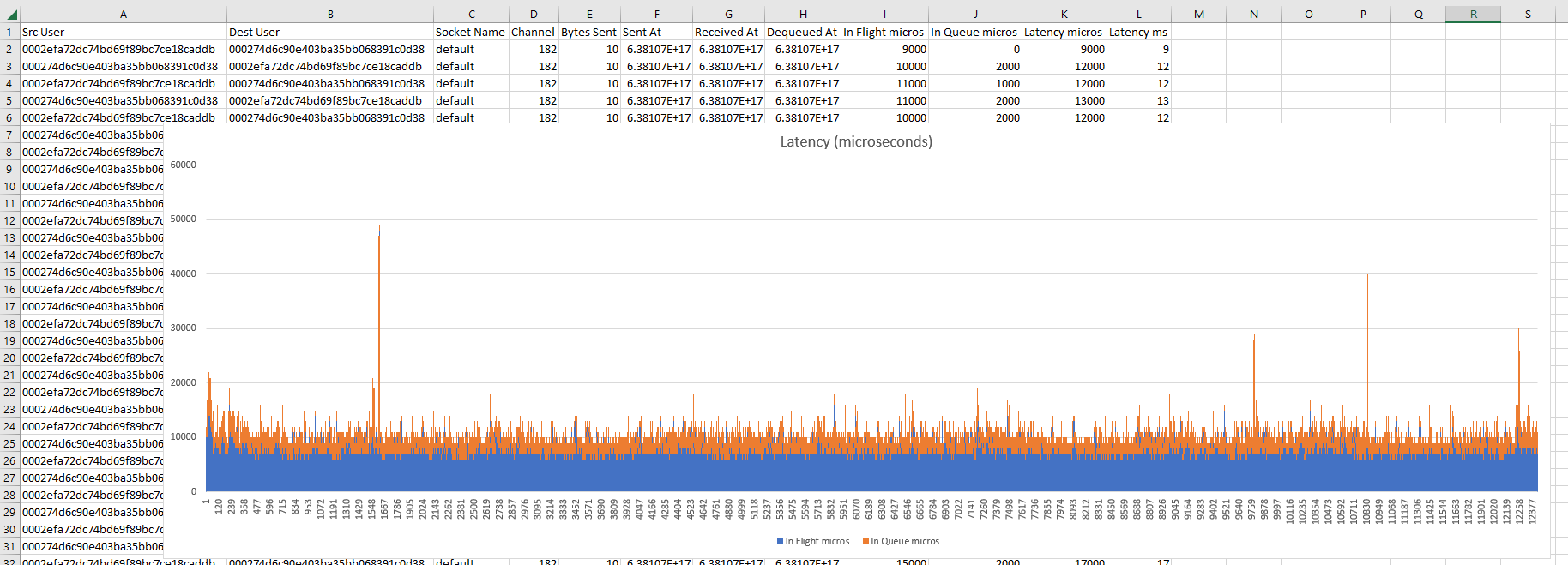
If you're seeing high latency in the "In Flight" column, beyond the latency you would expect between the two devices, this would indicate a bug in the EOS SDK and you should file a case on EOSHelp. We're not able to fix latency issues caused by the EOS SDK itself at the plugin level.
Tools like Excel will lock the file for reading and writing, preventing the engine from writing timing data. Make sure you don't have the EOSPacketTiming.csv file open in Excel before turning on t.EOSEnablePacketTiming.
Console variables for voice chat
The following console variables are available in non-Shipping builds only:
vc.RouteInputAudioThroughEngine: Defaults to true. When turned off, audio input will be captured by the EOS SDK instead of through Unreal Engine. Features such as volume adjustment, muting and device selection will not work when this console variable is turned off.vc.RouteOutputAudioThroughEngine: Defaults to true. When turned off, audio output will be emitted by the EOS SDK instead of through Unreal Engine. Features such as volume adjustment, muting, device selection and proximity/attenuation will not work when this console variable is turned off.vc.AlwaysUseMainSubmixDevice: Defaults to false. When turned on, the plugin will always use the primary device for outputting voice chat audio, even on platforms that support multiple audio output devices (Windows and Linux). Output device selection will not be available on Windows and Linux when this option is turned on.vc.OverrideInputChannels: Defaults to -1 (use hardware default). This can be set to override the input channels requested from the microphone device when audio capture begins.vc.RecordPcmToDisk: Defaults to false. When turned on, the plugin will write raw PCM audio data toSaved/VoiceChatso you can see the raw audio data as it passes through the plugin and the EOS SDK.vc.AlwaysPopulateInputDevicesOnGameThread: Defaults to false. When turned on, the plugin will always populate the input device list on the game thread. This may cause hitches if the underlying audio capture implementation takes time to query the hardware list.