Proximity voice chat on multiplayer game servers
You can use the Redpoint Voice Chat component to automatically manage voice chat on multiplayer servers. It simplifies your voice chat implementation by managing voice chat channels for connected players, and can route each player's voice chat audio to the pawns they currently possess.
Understanding voice chat groups
The voice chat component simplifies the implementation by allowing you to set the "voice chat group" on each player. Players with the same voice chat group will be able to hear each other. You don't need to know or manage voice chat channel names when using the voice chat component.
Some common implementations are:
- If you are building a cooperative game and you want all players on the server to hear each other, leave all players in voice chat group 0.
- If you are building a competitive game and you want team members to hear each other, set the voice chat group to the team ID.
You can change the voice chat group at any time on the game server, and players will connect to the correct voice chat channel automatically.
Add the Redpoint Voice Chat component to your player controller
To use the component, you first need to add the component to your player controller blueprint:
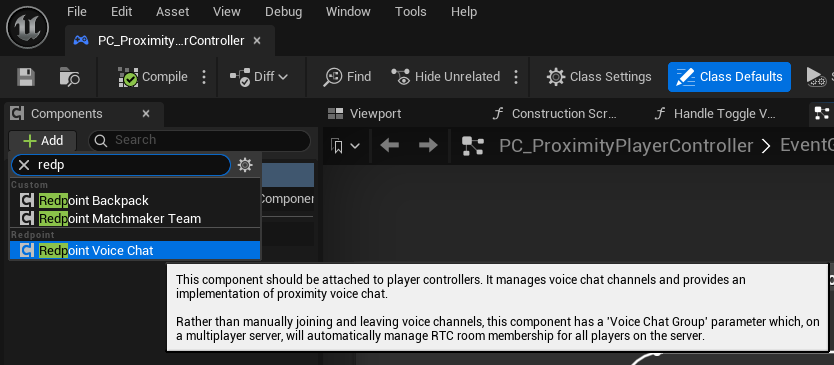
Configure the Redpoint Voice Chat component
After adding the component, there are only a few settings to configure:
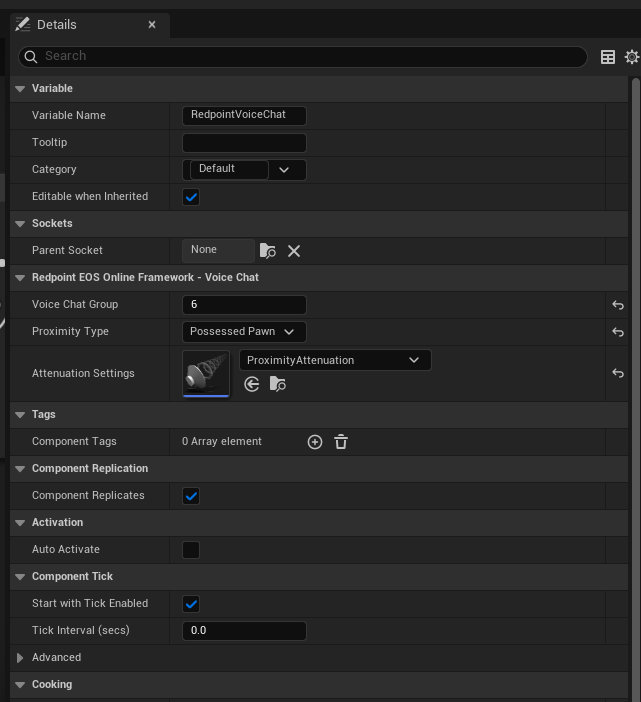
- Voice Chat Group: Players with the same voice chat group set will be in the same voice chat channel.
- Proximity Type:
- If set to 'None', no proximity or spatialisation will be applied to this player's voice chat audio when they are heard by other players.
- If set to 'Possessed Pawn', the player's voice chat audio will appear to be coming from their possessed pawn or character on other game clients.
- If set to 'Custom', the player's voice chat audio will appear to be coming from the actor you have set on the server via the "Set Custom Audio Anchor Point".
- Attenuation Settings: If proximity type is not set to None, you must set the attenuation settings which specifies how sound propagates in the game world, including the maximum distance at which the voice chat audio will be heard.
Blueprint nodes on the component
The following blueprint nodes can be called on both the client and server:
- Get Local User Id Returns the local player's user ID.
The following blueprint nodes can be called only on the client:
- Is Input Muted Returns whether this player's microphone is muted in this voice chat group.
- Set Input Muted Sets whether this player's microphone is muted in this voice chat group.
- Get Input Volume Returns the volume of this player's microphone in this voice chat group.
- Set Input Volume Sets the volume of this player's microphone in this voice chat group, between 0.0 and 200.0 (2x volume).
- Is Output Muted Returns whether this player's speaker is muted in this voice chat group.
- Set Output Muted Sets whether this player's speaker is muted in this voice chat group.
- Get Output Volume Returns the volume of this player's speaker in this voice chat group.
- Set Output Volume Sets the volume of this player's speaker in this voice chat group, between 0.0 and 200.0 (2x volume).
- Get Other Member User Ids Returns the list of other users that are currently in this player's voice chat group.
- Get All Member User Ids Returns the list of all users (including this player) that are currently in this player's voice chat group.
- Is Member Output Local Muted Returns if the other member in the voice chat group has been locally muted by this player.
- Set Member Output Local Muted Sets the other member's audio to be locally muted or unmuted by this player.
- Get Member Output Local Volume Returns the locally adjusted volume level of the other member in the voice chat group.
- Set Member Output Local Volume Sets the other member's volume level to be locally adjusted by this player, between 0.0 and 200.0 (2x volume).
- Is Member Output Hard Muted Returns if the other member in the voice chat group has been hard muted by the server.
- Is Member Blocked Returns if the other member in the voice chat group has been blocked by the local player. If another member of the voice chat group is blocked by the local player, the local player's microphone audio will not be sent to them.
- Is Local User Speaking Returns if the local player is currently speaking.
- Is Member Speaking Returns if the member of the voice chat group is currently speaking.
- Get Member Audio Actor Returns the actor that the other member's audio is being emitted from. This will be None if the target member is not emitting proximity-enabled audio, or if the actor has not been replicated by the server.
The following blueprint nodes can be called only on the server:
- Is Hard Muted on Server Returns true if this player has been hard muted for all other players in the voice chat group.
- Set Hard Muted on Server Sets whether this player should be hard muted for all other players in the voice chat group.
- Get Custom Audio Anchor Point Returns the current custom audio anchor point.
- Set Custom Audio Anchor Point Sets the custom audio anchor point. This only has an effect if the proximity type is set to 'Custom'.
Blueprint nodes available anywhere
You can control the input and output audio devices on the client:
- Get Available Voice Chat Audio Devices Returns the available audio devices that can be used with voice chat.
- Set Voice Chat Audio Input Device Sets the input audio device that the user should use for voice chat.
- Set Voice Chat Audio Output Device Sets the output audio device that the user should use for voice chat.
- Get Voice Chat Audio Input Device Returns the current input audio device the user is using for voice chat.
- Get Voice Chat Audio Output Device Returns the current output audio device the user is using for voice chat.
- Is Global Voice Chat Audio Feature Enabled Returns whether the audio feature (like echo cancellation or noise suppression) is currently enabled.
- Set Global Voice Chat Audio Feature Enabled Sets whether the audio feature (like echo cancellation or noise suppression) should be enabled.
- Is Voice Chat Enabled Returns whether voice chat is globally enabled for a player.
- Is Voice Chat Disabled by Platform Override Returns whether voice chat is disabled for a player due to a platform restriction.
- Set Voice Chat Enabled Sets whether voice chat is globally enabled for a player.