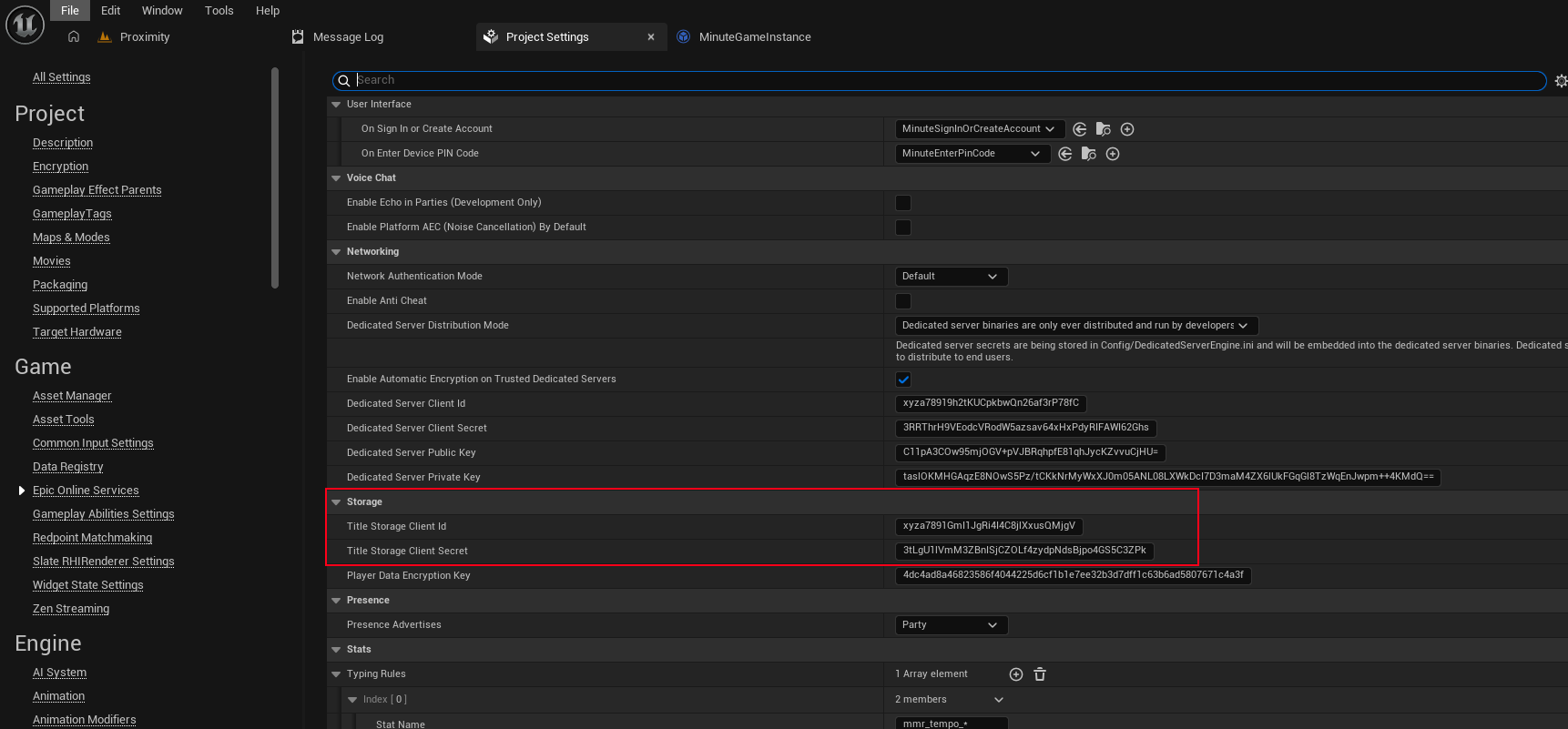
Set up anonymous access to Title File storage
If you want to allow game clients to download from Title File storage before any user signs in, you'll need to create a separate client ID and secret for your product in the Epic Games Developer Portal, and set this client ID and secret into your Project Settings.
Under the Product Settings for your product in the portal, go to the Clients tab and scroll down to Client policies. Then click Add new client policy, and fill it out as follows:
- Client policy name: Give it a name like "Anonymous Title Storage Access".
- Client policy type: Select "Custom".
- User required: Leave unchecked.
- Turn off all features except Title Storage, which should be turned on.
- Make sure all actions for Title Storage are turned on as well.
- Click Add new client policy.
Then, scroll up to Clients. Click on Add new client, and fill it out as follows:
- Client name: Give it a name like "(Your game) Anonymous Access".
- Client policy: Select the policy you just created.
- Click Add new client.
- Click the ... next to the client you just created, then click Edit.
- Copy the client ID and client secret.
In your Project Settings, paste this client ID and secret into the "Title Storage Client Id" and "Title Storage Client Secret" fields: