Updating presence
You can update the presence of the local user so that their friends and other players can see it. This allows you to advertise the current status of the player - whether they're in the main menu, in a party, currently in a match, and so on.
To ensure your game is compatible with platforms that require localised presence such as Steam, the StatusStr value provided to IOnlinePresence::SetPresence must be a localisable text key in the form <Namespace>_<Key>.
Setting up localisation
Before you can use presence, you need to set your Unreal Engine project up for localisation, as localisable presence is mandatory on platforms such as Steam.
- Under Project Settings -> Packaging, ensure that "Internationalization Support" is set to "All".
- Open the Localization Dashboard from Tools -> Localization Dashboard.
- If you're building a game that has C++ source code, then for the Game target, enable "Gather from Text Files" and ensure Search Directories has
Source/*as an entry. - For the Game target, enable "Gather from Packages" and ensure Include Path Wildcards has
Content/*as an entry. - Under Cultures, add at least one culture (e.g. English) if it is not already present.
- Click "Gather Text" and wait for it to complete.
- Click "Compile Text" and wait for it to complete.
- You should see the word count reflect the number of words you have in text values in blueprints and
NSLOCTEXT/LOCTEXTmacros in your source code.
Update the player's status
- C++
- Blueprints
To update a player's status, use the SetPresence function on the presence interface, like so:
IOnlineSubsystem *Subsystem = Online::GetSubsystem(this->GetWorld());
IOnlineIdentityPtr Identity = Subsystem->GetIdentityInterface();
IOnlinePresencePtr Presence = Subsystem->GetPresenceInterface();

FText MyPresence = NSLOCTEXT("MyGame", "PresenceStatus", "This is my custom status!");

FOnlineUserPresenceStatus Status;
Status.State = EOnlinePresenceState::Online;
Status.StatusStr = TEXT("MyGame_PresenceStatus");

Presence->SetPresence(
    *Identity->GetUniquePlayerId(0).Get(),
    Status,
    IOnlinePresence::FOnPresenceTaskCompleteDelegate::CreateLambda([](
        const class FUniqueNetId &UserId,
        const bool bWasSuccessful)
        {
            // Check bWasSuccessful.
        }));
Exporting localisation for Steam
If you're deploying your game on Steam, you'll need to upload localised presence values to the Steam partner portal.
We plan on automating this process in the future.
- Underneath
Content/Localization/Game/, each folder (such asen) will have a file calledGame.archivewhich contains all the text keys and translations. - Refer to the bottom of the Steamworks Rich Presence documentation and create the localisation file. Each files underneath
Tokensshould have a key in the format#<TextNamespace>_<TextKey>and the value is the translated text value. - Upload the Rich Presence file to your applications Steamworks configuration under Community -> Rich Presence.
Setting status properties for localised presence
To set dynamic values inside localised presence statuses, you need to add those dynamic values to Properties. Based on the parameter type, you'll need to set and embed them differently in Steam Rich Presence files:
| Int, UInt, Float, Double | Text | |
|---|---|---|
| Setting the Property | | |
Referring to it inside | | |
| Referring to it inside Steam Rich Presence | | |
| How it will render | My presence status with 5 | My presence status with My text |
View player presence information
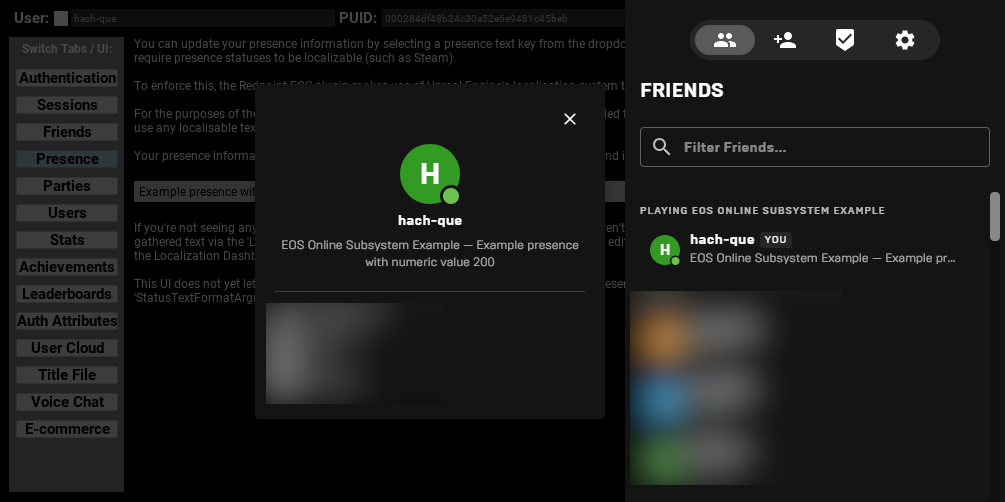
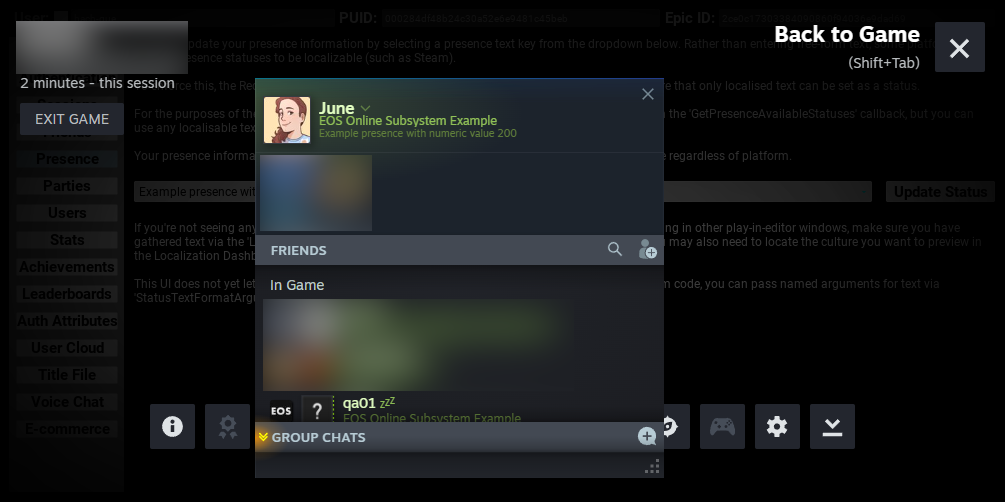
The presence status that you set will be visible on the local platform such as Steam, and in the Epic Games Social Overlay. For example:
To query presence in game, refer to Querying presence information of other users.